BroadcastSelf User Guide
The full manual for iPhone and iPad — every screen, every button, every setting, and what each one actually does.
Table of contents
1 Overview
BroadcastSelf is a live audio broadcasting app for internet radio. It captures your microphone, plays MP3 files from your device, mixes the two with independent faders and gain, encodes the mix to MP3 with the LAME encoder, and streams it to a standard Icecast or Shoutcast server that you own or rent.
The app does not host a server for you and does not store or moderate your audio. It is the studio; the server is the transmitter. There is no account — no sign-up, login, email or password anywhere in the app.
The screens you'll use
Splash  →  Server Setup (first run only)  →  Home
                                              │
                                              ├─ Go Live ──►  STUDIO
                                              │               ├── Broadcast tab
                                              │               ├── Music tab
                                              │               └── Listeners tab
                                              │
                                              ├─ Output Settings
                                              └─ Settings (gear)
2 Getting started in five minutes
You need one thing BroadcastSelf cannot provide: an Icecast or Shoutcast server. Any host works — a rented streaming plan, a self-hosted Icecast on a VPS, or even an Icecast running on your own computer on the same Wi-Fi. What you need from them is: server type, host, port, mount/path, source username and source password.
Step 1 — Install and open
Install from the App Store and open the app. There is no sign-up, no login, no email. The splash screen appears for a moment and takes you straight to the next step.
Step 2 — Enter your server
On the Radio Server Setup screen, fill in the server type, host, port, mount path, username and password, then tap Test Connection. See section 3 for every field.
Step 3 — Tap Go Live and allow the microphone
The first time the studio opens, iOS asks for microphone access. Tap Allow — the app cannot broadcast your voice without it. If you tapped Don't Allow by mistake: iOS Settings → BroadcastSelf → Microphone → on, then reopen the studio. You may also be asked to allow notifications; that is optional and used only for the On Air reminder.
Step 4 — Press the broadcast button
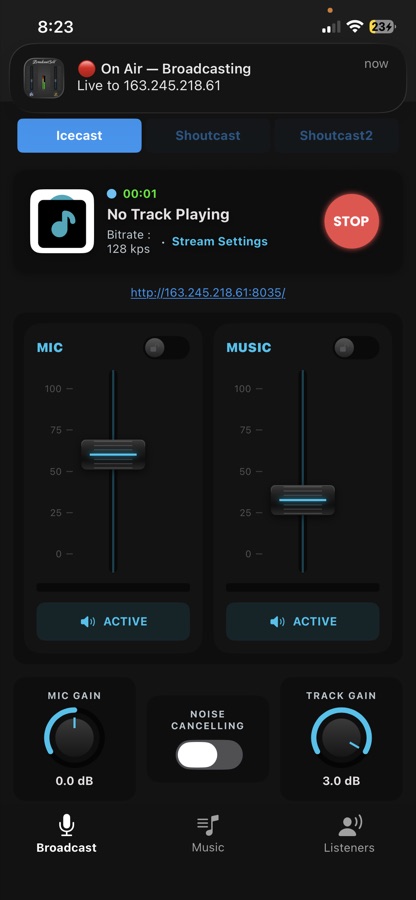
Check the server type strip at the top matches your server, then tap the big broadcast button on the right of the status card. It spins while connecting; when it connects, the red stop icon appears, a timer starts counting, and your stream URL appears below the card. You are live — speak into the microphone and watch the MIC meter move.
Step 5 — Add and play music
Switch to the Music tab. If the list is empty, put your files in Files app → On My iPhone → BroadcastSelf (from a Mac: Finder → your iPhone → Files → BroadcastSelf). Come back to the app and the songs appear automatically. Tap one to play it — it is mixed into the broadcast immediately and its title is sent to your server as live metadata.
Step 6 — Listen to your stream
Tap the stream URL on the Broadcast tab to copy it, then open it in VLC, a browser, or your station's player page.
3 Radio Server Setup
Reached automatically on first run, and any time you want to re-run a connection test from a fresh state.
| Field | Applies to | Notes |
|---|---|---|
| Server type | All | Icecast, Shoutcast v1 or Shoutcast v2. |
| Host | All | Hostname or IP — ic.example.com or 192.168.4.12. Don't include http://, a trailing slash, or the port. |
| Port | All | The source port your host gave you (often 8000), not the admin or web port. |
| Mount Path | Icecast only | Must start with /, e.g. /stream. |
| Username | Icecast only | Usually source. |
| Password | All | Your source password — not the admin panel password. Tap the eye icon to reveal it while typing. |
Shoutcast v1 and v2 don't use a mount path or username — those two fields disappear when you pick Shoutcast, because Shoutcast authenticates with the password alone.
Test Connection
Host, port and password are required. The app really connects to your server, then disconnects again — this is a genuine handshake, not a ping.
- Connection Successful → your details are saved to Output Settings. Tap Continue.
- Connection Failed → the exact server error is shown. Fix the details and tap Retry, or Skip for now.
Skip for now takes you into the app without saving anything — you can enter your server later under Settings → Output Settings. Until you enter real details the app holds placeholder defaults, and tapping the broadcast button raises a Server Setup Required dialog with a Setup Now shortcut.
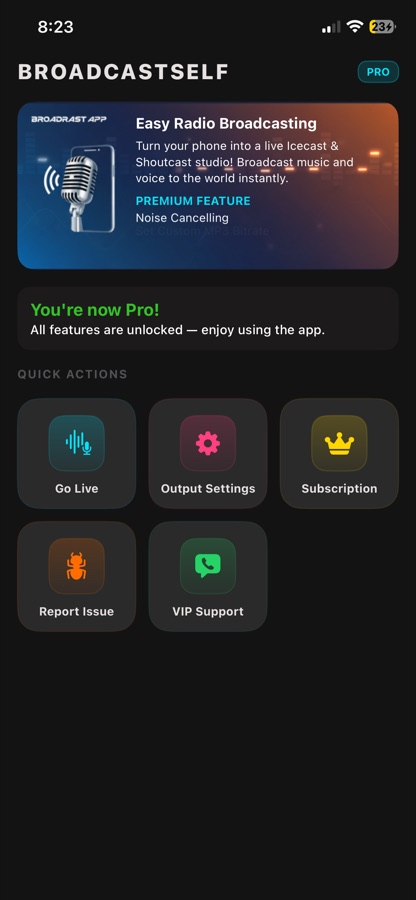
4 Home screen
| Element | Description |
|---|---|
| BROADCASTSELF header | Shows a gold PRO badge when your subscription is active. |
| Banner | Rotates through free and premium feature names every two seconds. |
| Activation strip | Free: "Unlock more unbeatable features!" with an Activate button. Pro: "You're now Pro!" |
| Quick actions | The tile grid below. |
| Tile | Action |
|---|---|
| 🎙 Go Live | Opens the Studio (broadcast console). |
| ⚙️ Output Settings | Server and streaming settings. |
| 👑 Subscription | Opens the Pro plans screen. |
| 🐜 Report Issue | Opens your mail app with a pre-filled bug report to support. |
| 💬 VIP Support PRO | Opens WhatsApp support. A ⭐ badge marks it as premium; tapping it without Pro shows the upgrade dialog. |
On first launch the app creates its Documents folder and
drops a small How to add songs.txt readme inside, so the
folder becomes visible in the Files app. You can delete that file. A Pro offer may also
appear — close it with the ✕, which becomes tappable after a three-second countdown, and
it won't be shown again for three days.
5 The Studio — Broadcast tab
The Studio title reflects your server type: Icecast Console, Shoutcast Console or Shoutcast V2 Console. The ← button asks "Exit Console? … Streaming will stop.", the ⚙︎ opens Settings, and the bottom bar switches between Broadcast · Music · Listeners. When the Studio opens it requests microphone permission and starts the audio engine.
A. Server type strip
Icecast Shoutcast Shoutcast2 — tap to switch protocol. Locked while you are connected; the unselected buttons dim. Stop the broadcast first.
B. Stream status card
| Artwork | Album art of the playing track, or a placeholder. |
| Status line | Red "Steam Not Started" when offline; a green elapsed timer
(HH:MM:SS) while live. |
| Track line | Current song title, or "No Track Playing". |
| Bitrate | The MP3 bitrate currently configured. |
| Stream Settings | Shortcut to Output Settings. While connected it shows a toast asking you to stop the stream first — encoder settings cannot change mid-broadcast. |
| Broadcast button | Start / stop. Shows a spinner while connecting. |
C. Stream URL
Once connected, your public stream URL appears under the card. Tap it to copy it to the clipboard.
D. Restart banner
If you change the bitrate or buffer size, a red banner appears: "Stream settings modified. Restart required to apply changes." Tap Restart Lame Service to rebuild the encoder with the new values.
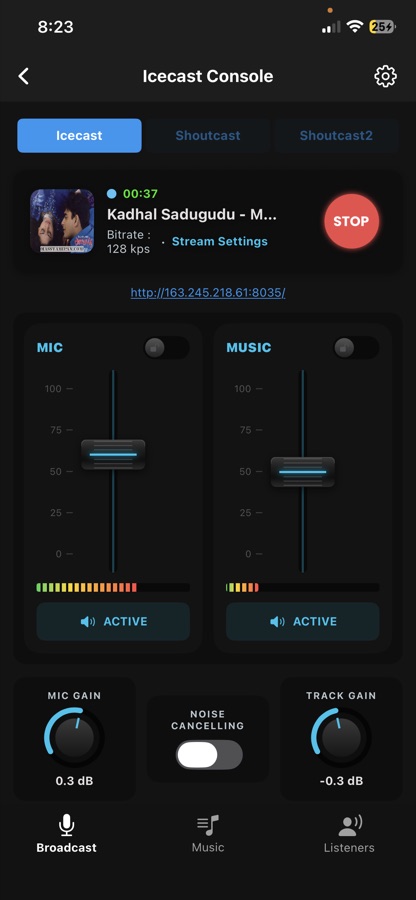
E. The mixer — MIC and MUSIC channel strips
| Control | What it does |
|---|---|
| Vertical fader | Channel level. MIC ranges higher than MUSIC, so you can push your voice above the bed. |
| Lock switch | Freezes the fader so you can't nudge it by accident during a live show. |
| Power meter | Real-time level of that channel. Keep peaks below the top of the meter. |
| ACTIVE / MUTED | Instant mute for that channel. Turns red and reads MUTED when muted. |
F. Knob row
| MIC GAIN | Input gain applied to the microphone, displayed in dB. Raise it for a quiet mic; back it off if the meter is pinned. |
| NOISE CANCELLING PRO | Suppresses steady background noise — fans, hum, room tone. Changes apply after an engine restart. Not available on every device; a toast tells you if the hardware doesn't support it. |
| TRACK GAIN | Gain applied to the music player, displayed in dB. |
Gain vs fader: gain sets how hot the signal is; the fader sets how much of it goes into the mix. Get the gain right first, then ride the fader. Typical talk-over setup: MUSIC fader down to roughly a third, MIC up, then bring MUSIC back once you stop speaking.
6 The Studio — Music tab
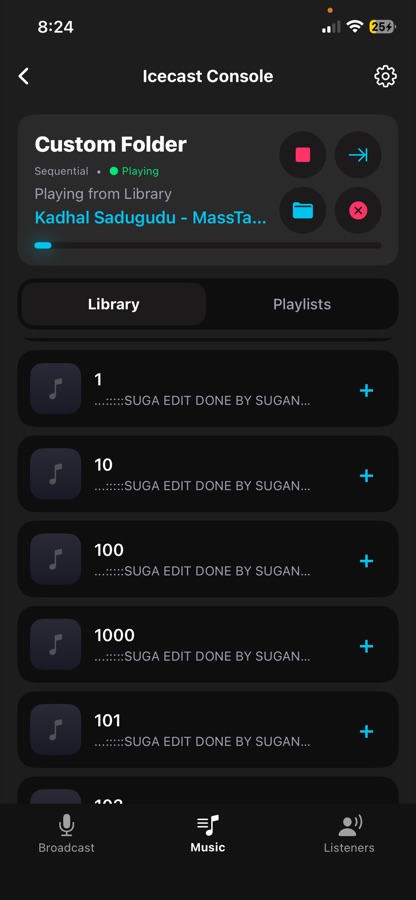
Header card
| Music Studio / Custom Folder | Which library you're browsing — the app folder, or your own picked folder PRO. |
| Play mode | Sequential · Repeat One · Shuffle. |
| State | ● Playing · ✓ Completed · ■ Stopped · ○ Idle. |
| Playing from … | The queue you're playing — the Library, or a playlist name. |
| Progress bar | Position within the current track. |
| Scanning line | While the library loads, the file being read is shown. |
Control cluster
| ⏹ Stop | Stops playback. The broadcast keeps running. |
| 🔁 Play mode | Cycles Sequential → Repeat One → Shuffle. |
| 📁 Folder PRO | Pick any folder on your device or in iCloud Drive as the music source. |
| ✕ Reset folder | Appears when a custom folder is active — returns to the app's own folder. |
Adding your music
From a Mac: Finder → your iPhone → Files → BroadcastSelf and drag the files in. New files appear in the app automatically — there is no import step. Only .mp3 files are listed. Title and artist are read from the file's ID3 tags; if there are none, the filename is used and the artist shows as Unknown Artist. Album art, when present, appears on the broadcast status card.
Library and Playlists tabs
The Library lists every song found. Tap a song to play it — the rest of the list becomes the queue. The + on a row adds that song to a playlist.
| Action | How |
|---|---|
| Create | + Create New Playlist, then name it. |
| Open | Tap a playlist to see its tracks. |
| Add songs | Inside a playlist, + Add Songs and pick from the library. |
| Play | Tap any track — the playlist becomes the queue. |
| Remove a song | Confirm the removal prompt on the track. |
| Delete a playlist | ✕ on the playlist row, then confirm. |
Whenever a track starts, its title and artist are pushed to your server as live metadata, so listeners and directory listings show the current song. Playlists are stored on the device and survive restarts.
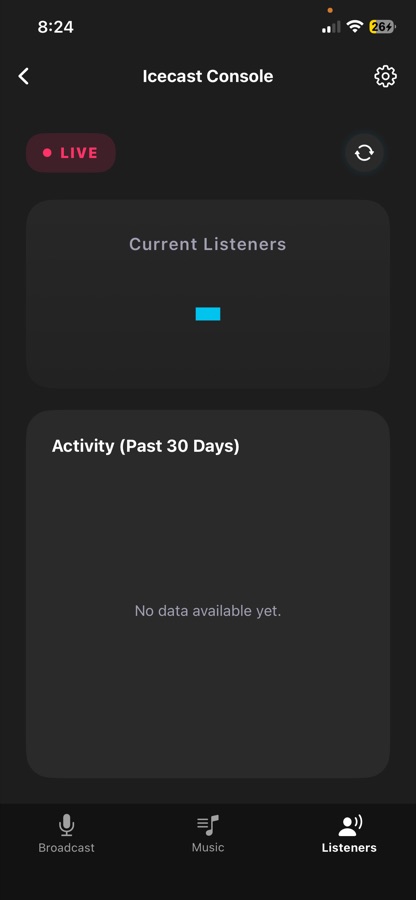
7 The Studio — Listeners tab PRO
| Element | Meaning |
|---|---|
| LIVE / OFFLINE pill | Whether you are currently broadcasting. The dot pulses while live. |
| Sync button | Fetches the current listener count from your server's admin interface. |
| Current Listeners | The number returned by the server, or N/A. |
| Activity (Past 30 Days) | A chart of the highest listener count recorded on each of the last 30 days. |
Admin credentials, not source credentials. Listener statistics come from your server's admin interface, which needs the admin username and password — not the source/stream password you broadcast with. If the server rejects them you'll see an Authentication Error dialog where you can enter the correct admin credentials; they are saved for next time.
History is recorded locally each time you sync, so run a sync now and then during a show to build a useful chart.
8 Settings
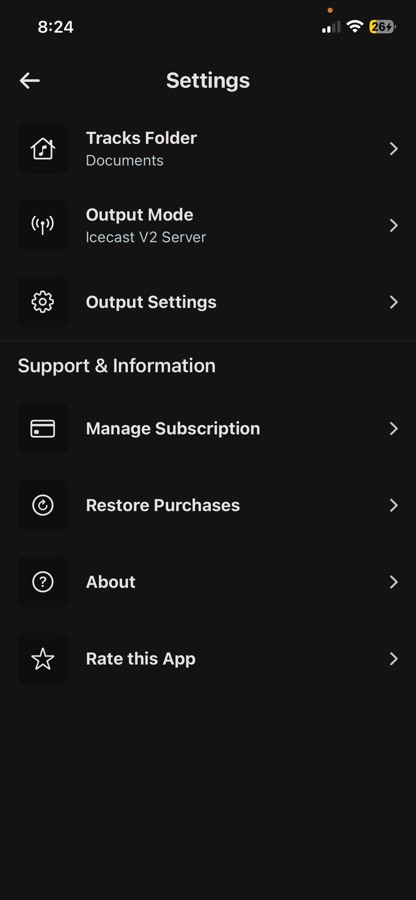
Reached from the gear icon in the Studio, or from Home.
General
| Tracks Folder PRO | Choose a custom music folder. Free accounts use the app folder. |
| Output Mode | Icecast V2 / Shoutcast V1 / Shoutcast V2 server. |
| Output Settings | Opens the full server and streaming settings screen. |
Support & Information
| Manage Subscription | Opens the plans screen. |
| Restore Purchases | Re-checks the App Store for an existing subscription and restores Pro. |
| About | Opens this website. |
| Rate this App | Opens the App Store rating link. |
9 Output Settings
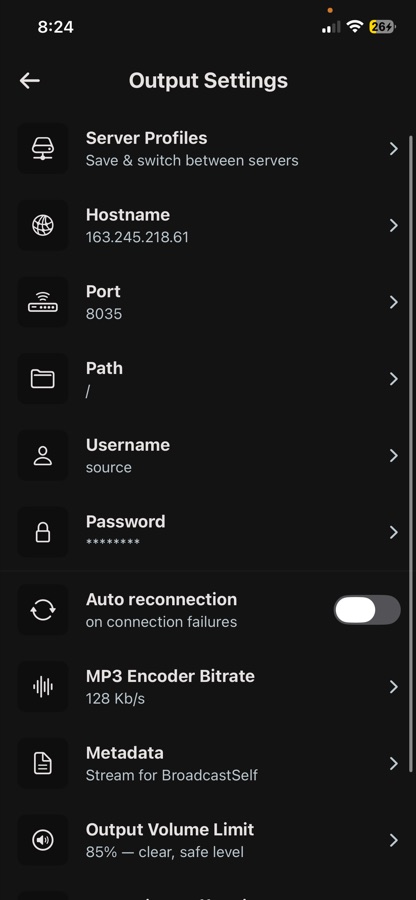
Server
| Server Profiles PRO | Save and switch between servers — see section 10. |
| Hostname | Host or IP of the server. |
| Port | Source port. |
| Path | Icecast only — the mount, e.g. /stream.
|
| Username | Icecast only — usually source. |
| Password | Source password. Displayed as ********.
|
Path and Username disappear when a Shoutcast server type is selected.
Streaming
| Setting | Options | Guidance |
|---|---|---|
| Auto reconnection PRO | on / off | Re-establishes the stream automatically if the connection drops. Never fights a manual stop. |
| MP3 Encoder Bitrate | 32 · 64 · 96 · 128 · 160 · 192 · 256 · 320 kbps | 32–64 = voice only, saves data · 96 = standard · 128 = recommended for music · 160–192 = premium · 256–320 = studio quality. Above 128 kbps requires Pro. |
| Metadata | free text | The station/stream name sent to the server. |
| Output Volume Limit | 50 · 60 · 70 · 75 · 85 · 100 % | 50–60 = very safe, lots of headroom · 70–75 = conservative · 85 = recommended · 100 = maximum, only with a well-controlled mix. Applies immediately. |
| Streaming Buffer Size | ×1 · ×2 · ×4 · ×8 | ×1 = too small, may drop audio · ×2 = fast, stable networks only · ×4 = recommended · ×8 = most stable for poor or mobile networks, adds latency. |
Changing bitrate or buffer size raises the restart banner on the Broadcast tab. Your server must also accept the bitrate you choose — many hosts cap it by plan.
10 Server profiles PRO — UP TO 5
Run more than one station, or a test server and a
live server? Save each as a profile and switch with one tap. Each row shows Type • host:port so you can tell servers apart at a glance.
| Action | How |
|---|---|
| Save Current | Stores the settings currently in Output Settings. If a profile is already active it updates that one; otherwise it asks for a name. |
| Add New | Enter a profile from scratch: name, type, host, port, path, username, password. |
| Switch | Tap a profile row — its settings are applied immediately and a toast confirms the switch. The active profile is marked with a ✓. |
| Delete | ✕ on the row, then confirm. Cannot be undone. |
11 Background broadcasting & the On Air notification
BroadcastSelf uses background audio, so:
- Locking the screen does not stop the broadcast.
- Switching to another app does not stop the broadcast.
- While live, a "🔴 On Air — Broadcasting" notification shows on the lock screen with the host you are streaming to.
- The notification is removed automatically when you stop.
Broadcasting stops only when you tap the broadcast button, exit the console, or the connection fails without auto reconnection.
Battery: a live broadcast keeps the microphone, encoder and network active. For long shows, keep the device on power.
12 Pro subscription
Pro is an optional auto-renewable subscription sold through the App Store, offered monthly (US$4.99) or yearly (US$39.99 — the plan card shows the equivalent monthly price and the percentage you save). Eligible accounts may be offered a free trial on the monthly plan. The free app is fully functional for broadcasting; Pro adds range, resilience and insight.
| Feature | Free | Pro |
|---|---|---|
| Icecast / Shoutcast v1 / v2 broadcasting | ✅ | ✅ |
| Mic + music mixer, faders, meters, mute | ✅ | ✅ |
| Mic & track gain control | ✅ | ✅ |
| Local MP3s, playlists and play modes | ✅ | ✅ |
| Live now-playing metadata | ✅ | ✅ |
| Background broadcasting + On Air notification | ✅ | ✅ |
| Buffer size and volume limit control | ✅ | ✅ |
| MP3 bitrate up to 128 kbps | ✅ | ✅ |
| MP3 bitrate 160 – 320 kbps | — | ✅ |
| Live listener count | — | ✅ |
| 30-day listener chart | — | ✅ |
| Noise cancelling | — | ✅ |
| Auto re-connection | — | ✅ |
| Custom music folder | — | ✅ |
| Server profiles (up to 5) | — | ✅ |
| Ad-free | — | ✅ |
| VIP WhatsApp support | — | ✅ |
Buy
Home → Subscription (or the Activate button, or any ⭐ premium row) → choose a plan → Continue. Payment is handled entirely by the App Store; BroadcastSelf never sees your payment details.
Restore
Settings → Restore Purchases. Use this after reinstalling, or on a new device signed in to the same Apple ID.
Cancel
iOS Settings → tap your name → Subscriptions → BroadcastSelf → Cancel Subscription. Cancel at least 24 hours before the renewal date; you keep Pro until the end of the paid period.
The fine print
- • Payment is charged to your Apple ID at confirmation of purchase.
- • Subscriptions renew automatically unless cancelled at least 24 hours before the end of the current period.
- • Manage or cancel in App Store settings at any time.
- • Pro status is verified only through the App Store and is re-checked on every launch. If a subscription expires, is cancelled or is refunded, Pro features turn off — including falling back from a custom music folder to the app folder.
- • Terms of Use (EULA) · Privacy Policy
13 iPad layout differences
The app adapts on iPad rather than stretching the phone layout:
- • Home — no scrolling; a full-width banner and an expanding three-column tile grid.
- • Server Setup — explanation on the left, form and buttons on the right.
- • Broadcast — server strip, status and gain knobs share the top row; the MIC and MUSIC channel strips expand to fill the rest of the screen.
- • Listeners — count card and 30-day chart side by side.
- • Settings / Output Settings — the two groups sit side by side as cards.
14 Permissions & privacy
| Permission | Why | Required? |
|---|---|---|
| Microphone | To broadcast your voice. | Yes, for broadcasting |
| Notifications | The On Air reminder and service announcements. | Optional |
| Files / folder access | Only when you pick a custom music folder PRO. | Optional |
- • No account, email, phone number or password is ever requested by the app.
- • Your server credentials are stored on the device and sent only to the server you configured.
- • The app streams to third-party servers you configure; it does not host, record or moderate content.
15 How it works under the hood
 ┌──────────┐   ┌───────────┐
 │   MIC    │──►│ Mic gain  │──┐
 └──────────┘   └───────────┘  │   ┌────────┐   ┌──────────┐   ┌───────────┐
                               ├──►│ MIXER  │──►│  LAME    │──►│  Icecast/ │
 ┌──────────┐   ┌───────────┐  │   │ faders │   │  MP3     │   │ Shoutcast │──► listeners
 │ MP3 file │──►│ Track gain│──┘   │ + limit│   │ encoder  │   │  server   │
 └──────────┘   └───────────┘      └────────┘   └──────────┘   └───────────┘
                                        │
                                   level meters
Everything left of the server runs on your device. The server is yours (or your host's) — BroadcastSelf just feeds it.
1 · Capture
The app opens an audio session configured for recording and playback with background audio, so the stream survives a locked screen or an app switch. The microphone is read continuously as raw PCM samples. Optional noise cancelling PRO engages the platform's voice-processing path to suppress steady background noise; because it changes how the audio unit is built, it takes effect after an engine restart.
2 · Playback
Music comes from .mp3 files on the device — either the app's own Documents
folder or a folder you pick PRO. The app reads ID3 tags for
title, artist and album art. The queue is whatever list you started from: the whole library,
or one playlist.
| Mode | Behaviour at end of track |
|---|---|
| Sequential | Plays the next track; stops after the last one. |
| Repeat One | Replays the same track. |
| Shuffle | Jumps to a different random track in the queue. |
3 · Mix
Two channels are combined every audio block: gain is applied per channel (the MIC GAIN and TRACK GAIN knobs, shown in dB); the faders set each channel's contribution to the mix; mute zeroes a channel instantly without moving its fader; and the output volume limit caps the final level, protecting listeners from clipping when both channels peak together. The power meters show the live level, so you can see a hot mic or a buried music bed before your listeners hear it.
4 · Encode
The mixed audio is fed to LAME, the MP3 encoder compiled into the app, at your chosen bitrate. The streaming buffer size decides how much encoded audio is held before sending — a smaller buffer means lower latency but more sensitivity to network jitter; a larger buffer adds delay but rides out a weak mobile signal. Because the encoder is built once at connect time, changing bitrate or buffer mid-stream raises the Restart Lame Service banner.
5 · Connect and send
- Validation — host, and for Icecast also path and username, plus a password must be present. Missing values fail fast with a clear message.
- Handshake — the app performs the source handshake for the selected protocol. Icecast v2 logs in to your mount with the source username and password; Shoutcast v1 uses the classic password-first source protocol with no mount and no username; Shoutcast v2 uses the v2 source protocol.
- Streaming — encoded MP3 frames are pushed continuously over the socket.
- Metadata — each time a track starts, its title and artist are sent to the server so "now playing" updates for listeners.
A connection loop runs on its own timer, independent of the audio path, so connecting never waits on audio and vice versa. With auto reconnection PRO, if the socket drops while you intended to be live the loop retries until it gets back on air — a manual stop is remembered and never overridden.
6 · Listener statistics PRO
Listener counts are not part of the source protocol — they come from the server's admin interface, which is why they need your admin credentials rather than the source password. Each sync reads the current listener count and records the day's highest value locally, and that local history is what the 30-day chart draws.
7 · What is stored, and where
| Data | Where it lives |
|---|---|
| Server details, bitrate, buffer, gains, play mode | On-device app settings |
| Server profiles (up to 5) | On-device |
| Playlists | On-device |
| Listener history (30 days) | On-device |
| Music files | The app's Documents folder, or your chosen folder |
| Subscription status | Verified with the App Store on every launch |
There is no user account and no server-side profile — nothing to sign into, and nothing to lose if you switch devices except settings you re-enter (or restore via Restore Purchases for Pro).
8 · Design decisions worth knowing
- • The server type is locked while live. Switching protocol mid-stream would require a new handshake, so stop first.
- • Encoder settings are locked while live. The Stream Settings shortcut tells you to stop the stream rather than silently ignoring the change.
- • Pro is re-checked on every launch and every foreground. An expired or refunded subscription loses Pro features immediately, including falling back from a custom music folder.
- • The app folder is seeded with a readme. iOS hides
an empty app folder in the Files app, so a tiny
How to add
                                    songs.txt
is written on first launch to make the folder appear.
16 Troubleshooting
Every message the app can show you, and what to do about it.
Connection problems
"Server Setup Required"
You're still on the placeholder server settings. Tap Setup Now and fill in your real host, port, path/username (Icecast) and password.
"Connection Failed" during Test Connection
The server's own error text is shown underneath. Check, in this order:
- Host — no
http://, no trailing slash, no port. Justic.example.com. - Port — the source port, not the web or admin port. Ask your host if unsure; 8000 is common but far from universal.
- Password — the source password, not the admin panel password.
- Mount path (Icecast) — must start with
/and must match what the server expects (/stream,/live,/radio…). - Server type — Icecast and Shoutcast use completely different handshakes. The wrong one always fails.
- Bitrate — many hosts reject a bitrate above your plan's limit.
"🔐 Check your username and password"
The server rejected your credentials. Fix the password (and username for Icecast) in Output Settings. The app stops retrying until you change something, so re-enter the value even if it looks right.
"Host name is missing" / "Path is missing" / "Username is missing" / "Password is missing"
A required field is blank. Icecast needs host, path, username and password; Shoutcast needs host and password.
The stream drops during a show
- • Turn on Auto reconnection PRO so the app recovers by itself.
- • Raise the Streaming Buffer Size to ×8 on mobile data or weak Wi-Fi.
- • Lower the bitrate — 320 kbps over a poor connection will not hold.
- • Check your host's simultaneous-source limit; a second encoder logged in with the same mount will knock you off.
"Something went wrong. Please try again later."
A network or server error the app couldn't classify. Check the device has internet, then confirm the server is up by opening its status page in a browser.
Audio problems
No one can hear my voice
- • Confirm the MIC channel is ACTIVE, not MUTED.
- • Raise the MIC fader.
- • Watch the MIC power meter — if it doesn't move, iOS isn't giving the app audio. Check iOS Settings → BroadcastSelf → Microphone.
- • Something else may hold the microphone; close other recording or call apps.
My voice is too quiet / too loud
Set MIC GAIN first so the meter peaks healthily without pinning, then use the fader to balance against music. If everything distorts, lower the Output Volume Limit to 75 %.
Music drowns out my voice
Pull the MUSIC fader down while you talk and push it back afterwards. For a permanent change, lower TRACK GAIN.
Background noise or hum
Enable NOISE CANCELLING PRO on the Broadcast tab, then restart the engine so it takes effect. If the toast says it's unavailable, your device doesn't support the processing mode.
Audio sounds broken or drops out
Buffer ×1 is too small for almost every network — set it to ×4 (recommended) or ×8, then tap Restart Lame Service.
Music library problems
"No .mp3 files found" / my songs don't appear
- • Only .mp3 files are listed. Convert other formats first.
- • Put the files in the right place: Files app → On My iPhone → BroadcastSelf (or Finder → your iPhone → Files → BroadcastSelf).
- • If you can't see the folder in Files, open the app once — it creates the folder and a
How to add songs.txtreadme so iOS shows it. - • If you're on a custom folder PRO the header says Custom Folder; tap the ✕ button to reset to the app folder.
Songs show the filename instead of a title
The file has no ID3 tags. Tag it in any tag editor and re-add it.
The custom folder stopped working
Custom folders are a Pro feature. If Pro lapsed, the library falls back to the app folder automatically. It also stops working if the folder was on an external drive or in iCloud and is no longer reachable — re-pick it.
Settings problems
"To update settings, please stop your current stream first."
Encoder settings can't change mid-broadcast. Stop the stream, change the setting, start again.
The red "Restart required" banner
You changed bitrate or buffer size. Tap Restart Lame Service to rebuild the encoder with the new values.
I can't switch server type
The server-type strip is locked while you're connected. Stop the broadcast first.
Listener stats problems
"Authentication Error" when syncing listeners
Listener stats use your server's admin username and password — not the source password you broadcast with. Enter the admin credentials in the dialog and they'll be saved.
Listener count shows "N/A"
You're not connected, or the server isn't exposing stats. Some managed hosts block the admin interface from outside their own panel; in that case the count can't be read from any external encoder.
The 30-day chart is empty
History is built from your own syncs. Tap the sync button during shows and the chart fills in over the following days.
Subscription problems
I paid but Pro features are locked
Settings → Restore Purchases, and make sure the device is signed in to the Apple ID that bought the subscription.
Pro stopped working
Pro is re-verified with the App Store on every launch. An expired, cancelled or refunded subscription loses access. Check iOS Settings → your name → Subscriptions.
"Couldn't load subscription plans."
The App Store couldn't be reached. Check your connection and tap the retry option on the plans screen.
17 Frequently asked questions
Do I need an account?
No. There is no sign-up, login, email or password anywhere in the app.
Does BroadcastSelf give me a radio server?
No. It is the studio, not the transmitter. You need your own Icecast or Shoutcast server — self-hosted, on a VPS, or from any streaming host.
What audio format does it stream?
MP3, encoded on the device with LAME, at 32–320 kbps. Bitrates above 128 kbps require Pro.
Which music files can I stream?
.mp3 files.
Title, artist and album art are read from the file's ID3 tags.
Can I stream from Apple Music or Spotify?
No. Those services are DRM-protected and cannot be re-broadcast. Use your own MP3 files.
Can I talk over the music?
Yes — that's what the two faders are for. Pull the MUSIC fader down, speak, push it back up.
What bitrate should I use?
128 kbps is the sweet spot for music. Use 64–96 kbps for a voice-only show or to save listener bandwidth; 192–320 kbps only if your server plan and your listeners' connections can carry it.
What buffer size should I use?
×4. Drop to ×2 only on a fast, stable network; go to ×8 on mobile data or a weak signal — it adds a little delay but is far more stable.
Where do I find my stream URL?
It appears under the status card once you're connected. Tap it to copy it.
Can I broadcast to two servers at once?
No — one server at a time. With Pro you can save up to five server profiles and switch in one tap.
Does the app record my shows?
No. It streams live; nothing is recorded or stored by the app.
I reinstalled the app — how do I get Pro back?
Settings → Restore Purchases, signed in to the Apple ID that bought it.
18 Glossary & support
| Term | Meaning |
|---|---|
| Icecast | Open-source streaming server. Uses a mount point like /stream. |
| Shoutcast | Streaming server family (v1 and v2). No mount point in v1. |
| Mount / Path | The address of one stream on an Icecast server, e.g. /stream. |
| Source password | The password an encoder uses to send audio to the server. |
| Admin password | The password to the server's control panel — used only for listener stats. |
| Bitrate | How many kilobits per second the MP3 uses. Higher = better sound, more bandwidth. |
| Buffer | Audio held in reserve to ride out network hiccups. Bigger = more stable, more delay. |
| Gain | How much the input signal is amplified before the mix. |
| Fader | How much of a channel goes into the final mix. |
| Metadata | The "now playing" text your listeners see. |
| LAME | The MP3 encoder library the app uses. |
Still stuck?
Report Issue
Home screen → Report Issue opens a pre-filled support email.
VIP WhatsApp PRO
Home screen → VIP Support.
What to include
- Server type — Icecast / Shoutcast v1 / Shoutcast v2
- Host and port (the password is never needed)
- Bitrate and buffer size
- Whether Test Connection succeeds
- The exact error text shown in the app
- Device model and iOS version
That's usually enough to diagnose it in a single reply. Purchases, refunds and cancellations are handled by Apple: manage or cancel in iOS Settings → your name → Subscriptions, and request refunds at reportaproblem.apple.com.